
To format text in WhatsApp, wrap your words in simple punctuation characters: use *asterisks* for bold, _underscores_ for italic, and ~tildes~ for strikethrough. You can also format text by highlighting words and choosing styles directly from the Android or iPhone context menu.
Quick Answer (The 8 Native WhatsApp Text Formats):
- Bold:
*text*➔ text (Crucial dates, numbers, deadlines) - Italic:
_text_➔ text (Emphasis, foreign phrases, book titles) - Strikethrough:
~text~➔text(Corrections, discounts, completed items) - Monospace Block:
```text```➔text(Typewriter font for serial keys and logs) - Inline Code:
`text`➔text(Single code fragments, tracking IDs) - Block Quote:
> text➔ Indented quoted text block - Bullet List:
- textor* text➔ • Bulleted scannable points - Numbered List:
1. text➔ Automatically indented numbered steps
┌──────────────────────────────────────────────────────────────────────────┐
│              WHATSAPP FORMATTING: MANUAL SYNTAX VS. IN-PLACE AI          │
├──────────────────────────────────┬───────────────────────────────────────┤
│ The Manual Symbol Friction       │ Switch to symbol keyboard ➔ Hunt for  │
│ (Asterisks, Tildes & Backticks)  │ `*` or `~` ➔ Avoid space errors ➔ Fix │
│                                  │ line break bugs (15–30 sec per text)  │
├──────────────────────────────────┼───────────────────────────────────────┤
│ The 1-Tap Synapse AI Workflow    │ Type raw thoughts ➔ Tap "Format List" │
│ (In-Place IME Automation)        │ or "Make Professional" ➔ Instant      │
│                                  │ styled, typo-free output (3 seconds)  │
└──────────────────────────────────┴───────────────────────────────────────┘
Below is the definitive 2026 guide to WhatsApp text formatting across Android, iPhone, WhatsApp Web, and Desktop apps. We cover full Markdown syntax, hidden keyboard shortcuts, business communication templates, troubleshooting for broken formatting, and how to automate formatting on Android using an in-place AI keyboard.
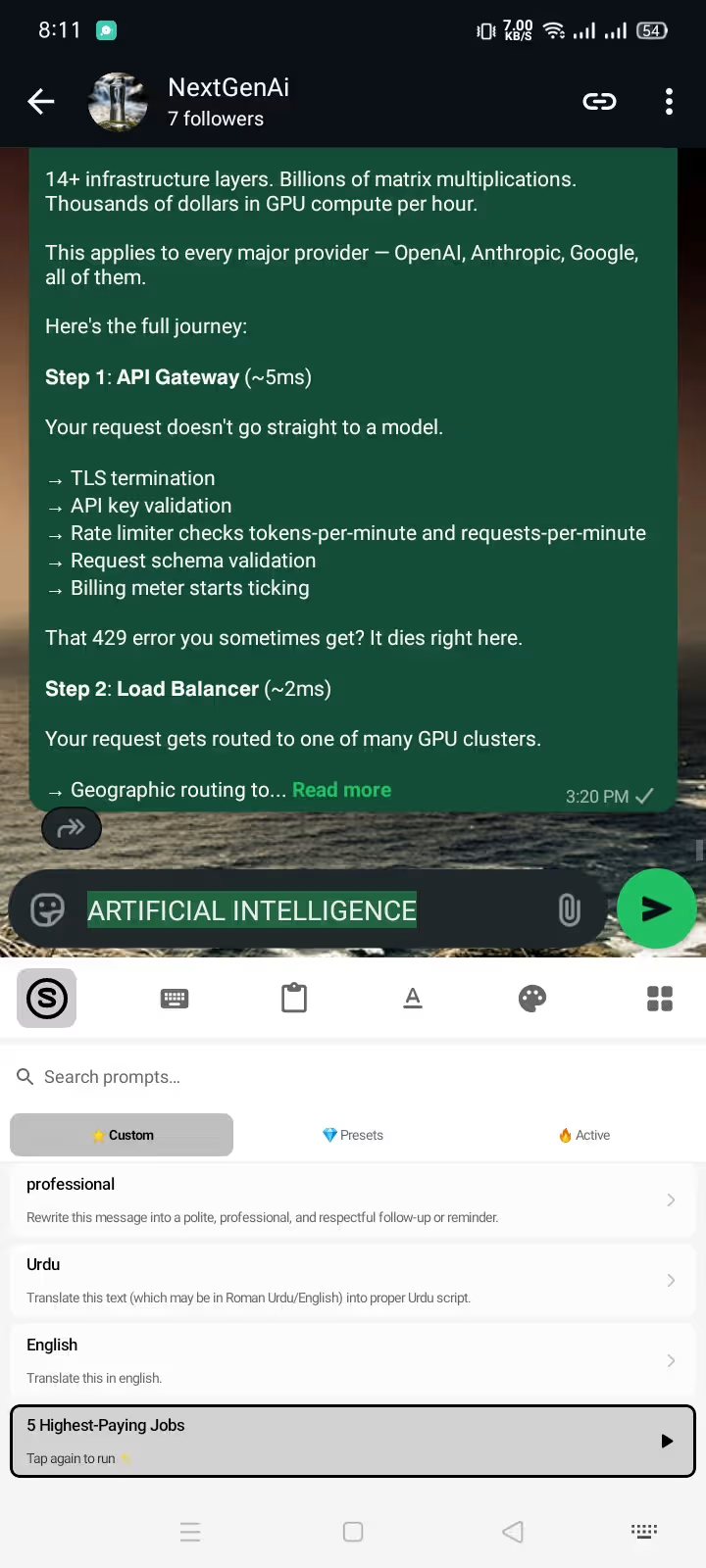
1. Master WhatsApp Text Formatting Cheat Sheet
Use this reference table to see the exact syntax, visual result, and native keyboard shortcuts across all supported platforms:
| Format Style | Native Syntax | Visual Result | Web / Desktop Shortcut | Primary Use Case |
|---|---|---|---|---|
| Bold | *important* | important | Ctrl / Cmd + B | Deadlines, pricing, meeting times |
| Italic | _nuance_ | nuance | Ctrl / Cmd + I | Subtle tone, terminology, book titles |
| Strikethrough | ~old price~ | Ctrl / Cmd + Shift + X | Price drops, task lists, corrections | |
| Monospace (Block) | ```code block``` | code block | N/A (Type 3 backticks) | Technical specs, tracking numbers |
| Inline Code | `PIN-4921` | PIN-4921 | N/A (Type 1 backtick) | Passwords, reference codes, formulas |
| Block Quote | > quote text | ▎Quoted text | N/A (Type > + Space) | Replying to specific email/chat points |
| Bulleted List | - Item or * Item | • Item | N/A (Type - + Space) | Agendas, deliverables, shopping lists |
| Numbered List | 1. Item | 1. Item | N/A (Type 1. + Space) | Step-by-step instructions, workflows |
Every style in this table is built natively into WhatsApp's chat engine. They render identically whether your recipient uses an Android smartphone, an iPhone, macOS, Windows, or WhatsApp Web.
2. Step-by-Step Guide: How to Apply Each Format
2.1 How to Bold Text in WhatsApp
To make text bold, place an asterisk (*) immediately before the first letter and immediately after the last letter of the targeted phrase:
*Proposal submission deadline is Friday at 5:00 PM EST.*
- Result: Proposal submission deadline is Friday at 5:00 PM EST.
- Golden Rule: Ensure there are zero spaces between the asterisk and the first/last character.
* deadline *fails;*deadline*succeeds.
2.2 How to Italicize Text in WhatsApp
To italicize text, place an underscore (_) on both sides of the word or sentence:
Please review the _revised scope of work_ before signing.
- Result: Please review the revised scope of work before signing.
- Best Practice: Use italics for subtle conversational emphasis, technical jargon, Latin terms (e.g., de facto, per se), or book and article titles.
2.3 How to Strikethrough Text in WhatsApp
To put a line through your text, place a tilde (~) before and after the text:
Original Consultation Rate: ~$150/hr~ $95/hr for early bookings.
- Result: Original Consultation Rate:
$150/hr$95/hr for early bookings. - Best Practice: Perfect for promotional pricing announcements, real-time corrections without deleting previous context, and crossed-off project milestones.
2.4 How to Use Monospace and Inline Code
Monospace gives all characters uniform horizontal width (typewriter font). WhatsApp provides two distinct code formatting styles:
- Preformatted Monospace Block: Wrap your text in three consecutive backticks on each side:
```SERVER_IP: 192.168.1.105``` - Inline Code: Wrap a single word or parameter in one backtick on each side:
Your verification PIN is `849201`.
- Keyboard Tip for Android Users: The backtick (
`) is distinct from a standard apostrophe ('). On most Android keyboards (such as Gboard, Samsung Keyboard, or Synapse), long-press the apostrophe or switch to the secondary symbols menu (=\<) to locate the backtick.
2.5 How to Create Quotes, Bullet Lists, and Numbered Lists
WhatsApp natively supports Markdown block formatting across all recent versions:
- Block Quote: Type
>(greater-than symbol followed by a space) at the beginning of a line. WhatsApp automatically creates a stylized vertical bar and indent. - Bulleted List: Type
-or*followed by a space at the start of a line. WhatsApp converts it into an indented round bullet point (•). - Numbered List: Type
1.followed by a space. When you press Enter on your keyboard, WhatsApp automatically populates the next number (2.,3.) for you.
┌──────────────────────────────────────────────────────────────────────────┐
│              WHATSAPP BLOCK FORMATTING SYNTAX (COPY-PASTE)               │
├──────────────────────────────────────────────────────────────────────────┤
│ > Client requested a 24-hour turnaround on the mobile mockup.            │
│                                                                          │
│ Action items for today:                                                  │
│ - Finalize Figma design components                                       │
│ - Export retina assets for Android build                                 │
│ - Send updated APK to QA testing group                                   │
└──────────────────────────────────────────────────────────────────────────┘
3. The Visual Method: Formatting Without Remembering Symbols
If you do not want to memorize Markdown symbols or switch between symbol keyboards on a touchscreen, use the built-in operating system context menu:
- Type your draft in the WhatsApp message field.
- Double-tap or long-press the specific word you want to style (drag the blue selection handles to select multiple words).
- Select your format:
- On Android: Tap the three vertical dots (
⋮) in the floating context popup menu, then select Bold, Italic, Strikethrough, or Monospace. - On iPhone (iOS): Tap the arrow
>or tap Format / BIU in the popup menu, then choose your desired style.
- On Android: Tap the three vertical dots (
WhatsApp instantly inserts the appropriate syntax symbols around your selected text automatically.
4. How to Combine Multiple Formatting Styles (Nesting Rules)
You can combine multiple formatting styles to create bold italics or bold strikethrough text. To do this correctly, you must follow the clean nesting rule (First-In, Last-Out):
*_Bold and Italic_*
*~Bold and Strikethrough~*
_~Italic and Strikethrough~_
*~_Bold, Italic, and Strikethrough_~*
Critical Nesting Pitfall:
Do not overlap formatting tags in mismatched order.
- ✅ Correct:
*_Project Delivered_*(Asterisk outside, underscore inside on both ends). - ❌ Broken:
*_Project Delivered_*with trailing misplaced characters like*_Project Delivered_*~or mismatched pairs like*word_.
[!NOTE] Monospace (
) cannot be combined with bold, italic, or strikethrough. If you wrap monospace text in asterisks (`*code```*`), WhatsApp treats the asterisks as literal characters and ignores the styling.
5. Keyboard Shortcuts for WhatsApp Web & Desktop
If you use WhatsApp Web on Chrome, Edge, or Firefox, or the native WhatsApp desktop application on Windows and Mac, you can format text instantly using standard desktop keyboard shortcuts:
┌──────────────────────────────────────────────────────────────────────────┐
│              WHATSAPP WEB & DESKTOP KEYBOARD SHORTCUTS MATRIX            │
├──────────────────────┬─────────────────────────┬─────────────────────────┤
│ Desired Style        │ Windows / Linux         │ macOS                   │
├──────────────────────┼─────────────────────────┼─────────────────────────┤
│ Bold Selected Text   │ Ctrl + B                │ Cmd + B                 │
│ Italic Selected Text │ Ctrl + I                │ Cmd + I                 │
│ Strikethrough Text   │ Ctrl + Shift + X        │ Cmd + Shift + X         │
│ Monospace Font       │ Ctrl + Shift + J (Some) │ Cmd + Shift + J (Some)  │
│ Undo Formatting      │ Ctrl + Z                │ Cmd + Z                 │
│ Add Line Break       │ Shift + Enter           │ Shift + Enter           │
└──────────────────────┴─────────────────────────┴─────────────────────────┘
Pro Tip: Pressing Enter in WhatsApp Web immediately sends the message. To add a new paragraph without sending, always hold Shift + Enter.
6. WhatsApp Business Formatting Templates for High-Impact Messaging
Text formatting transforms messy walls of text into professional, high-converting client communications. Here are 3 battle-tested templates you can copy and use immediately:
Template 1: Milestone Delivery & Next Steps
*Project Update: Milestone 2 Complete* 🚀

Hi Sarah, the staging environment for your mobile app is live:
> Staging URL: https://staging.clientapp.com
> Credentials: `Admin_Demo` / `Pass2026!`

*Key Deliverables Completed:*
- User authentication & biometrics
- Payment gateway sandbox integration
- Custom push notification routing

*Next Step:* Please review by *Thursday, 5:00 PM EST* so we can begin the final deployment sprint.
Template 2: Invoice & Payment Follow-Up
*Invoice Payment Reminder: Invoice #104*

Hi Marcus, hope your week is going smoothly!

Just a friendly reminder that *Invoice #104 ($1,200.00)* was due on ~Tuesday, Aug 25~ *yesterday*.

To keep our development sprint on schedule for Friday's release, please process the transfer and share the confirmation receipt here.

*Payment Link:* https://billing.agency.com/pay/104
Template 3: Quotation & Package Comparison
*Custom Web Development Quote:*

*Option A (Standard MVP):*
- Custom React frontend
- Stripe checkout integration
- Price: *$2,500* (Timeline: 2 weeks)

*Option B (Scale Package):*
- Everything in Option A +
- Native Android AI Keyboard integration
- Price: *$4,200* (Timeline: 3.5 weeks)

Let me know which tier aligns best with your Q4 launch goals!
For more scenario-specific scripts and client communication strategies, read our deep-dive guide to professional WhatsApp client replies on Android and explore AI prompts for freelancer client messages.
7. Troubleshooting: Why Isn't WhatsApp Formatting Working?
If your asterisks, underscores, or tildes remain visible as plain punctuation characters rather than rendering as styled text, diagnose the issue using this 7-point checklist:
┌──────────────────────────────────────────────────────────────────────────┐
│              WHATSAPP FORMATTING DIAGNOSTIC FLOWCHART                    │
├────────────────────────────────┬─────────────────────────────────────────┤
│ 1. Hidden Whitespace Error     │ Check: Is there a space after `*`?      │
│                                │ Fix: Remove space (`* word *` ➔ `*word*`)│
├────────────────────────────────┼─────────────────────────────────────────┤
│ 2. Line Break Interruption     │ Check: Does your bold span 2 paragraphs?│
│                                │ Fix: Close and reopen tags per line     │
├────────────────────────────────┼─────────────────────────────────────────┤
│ 3. Mid-Word Partial Formatting │ Check: Are you typing `un*believable`?  │
│                                │ Fix: WhatsApp requires whole-word bounds│
├────────────────────────────────┼─────────────────────────────────────────┤
│ 4. "Smart Punctuation" Bug     │ Check: Did autocorrect make curly `”`?  │
│                                │ Fix: Use standard straight ASCII quotes │
├────────────────────────────────┼─────────────────────────────────────────┤
│ 5. WhatsApp Status Limitation  │ Check: Are you posting in Status/About? │
│                                │ Fix: Native Markdown only works in chats│
└────────────────────────────────┴─────────────────────────────────────────┘
- Accidental Whitespace Inside Tags: The most frequent error. If you write
* bold *, WhatsApp refuses to render bold text. You must write*bold*with zero spaces touching the inner sides of the asterisks. - Formatting Across Line Breaks: Native Markdown cannot wrap across a hard Enter return. If you want two separate paragraphs bolded, apply the asterisks to each paragraph independently.
- Mid-Word Character Styling: WhatsApp does not allow styling a syllable inside a continuous word (e.g.,
super*fast*deliverywill not bold "fast"). The opening delimiter must be preceded by a space or punctuation mark. - Smart Quotes & Curly Tildes: Certain third-party keyboards automatically convert straight symbols into typographic curved characters (
“,”,~). WhatsApp's parser only recognizes standard ASCII characters. - WhatsApp Status & Profile About Lines: Native Markdown syntax (
*,_,~) does not work in your WhatsApp Status updates, Group Titles, or Profile "About" descriptions. In those fields, the asterisks will appear as plain text.
8. Native Formatting vs. Fancy Unicode Fonts (The Accessibility Trap)
Many users search for ways to write in cursive, Gothic letters, bubble fonts, or underlined text on WhatsApp.
Because WhatsApp does not support native font switching or underlining, third-party "Fancy Font Generators" use Mathematical Unicode Alphanumeric Symbols to imitate custom typefaces.
┌──────────────────────────────────────────────────────────────────────────┐
│              NATIVE WHATSAPP FORMATTING VS. UNICODE GENERATORS           │
├───────────────────────────────┬──────────────────────────┬───────────────┤
│ Metric                        │ Native Markdown (* / _)  │ Unicode Fonts │
├───────────────────────────────┼──────────────────────────┼───────────────┤
│ Searchable in WhatsApp Chat   │ ✅ Yes                   │ ❌ No         │
│ Screen Reader Accessible      │ ✅ 100% Readable         │ ❌ Broken     │
│ Cross-Device Rendering        │ ✅ Perfect on all OS     │ ⚠️ Blank boxes│
│ Battery & Security Impact     │ ✅ Zero Overhead         │ ⚠️ Risky IMEs │
│ Best Location                 │ Chat body, client emails │ Bio / Status  │
└───────────────────────────────┴──────────────────────────┴───────────────┘
Why You Should Avoid Unicode Fonts in Business Chats:
- Screen Reader Incompatibility: Visually impaired users using TalkBack (Android) or VoiceOver (iOS) will hear mathematical character names (e.g., "Mathematical Bold Capital H, Mathematical Bold Small e") or silence instead of standard words.
- In-Chat Search Failure: WhatsApp's search bar cannot match standard text queries to Unicode characters. If you send an invoice or address using a fancy font, neither you nor your client can search for it later.
- Missing Glyph Rectangles (Tofu): Older Android devices or unupdated operating systems frequently render decorative Unicode characters as empty rectangular boxes (
[]).
For message bodies, stick exclusively to native WhatsApp Markdown formatting. If you need stylish status headers, use our web-based WhatsApp text formatter or fancy text generator where appropriate.
9. How to Format WhatsApp Messages 10x Faster with AI (In-Place Android Keyboard)
While formatting with asterisks and hyphens is effective, manually hunting for symbols on a mobile touchscreen is slow and interrupts your conversational flow. Furthermore, formatting only addresses visual presentation—it does not fix grammar errors, awkward phrasing, or rude tone.
This is where an in-place AI keyboard like Synapse AI Keyboard completely revolutionizes your Android workflow.
┌──────────────────────────────────────────────────────────────────────────┐
│              THE MOBILE DRAFTING FRICTION COMPARISON                     │
├──────────────────────────────────┬───────────────────────────────────────┤
│ The Old Copy-Paste Method        │ Type in WhatsApp ➔ Copy ➔ Open        │
│ (ChatGPT / Standalone Web Apps)  │ ChatGPT ➔ Paste ➔ "Format this list"  │
│                                  │ ➔ Copy ➔ Reopen WhatsApp ➔ Paste      │
│                                  │ (Takes 45–60 seconds per message)     │
├──────────────────────────────────┼───────────────────────────────────────┤
│ The Synapse In-Place AI Method   │ Type messy bullet points ➔ Select     │
│ (1-Tap Keyboard Toolbar)         │ ➔ Tap "Format WhatsApp" ➔ Text        │
│                                  │ instantly styles inline (3 seconds)   │
└──────────────────────────────────┴───────────────────────────────────────┘
How to Format & Polish WhatsApp Messages with Synapse:
- Type your rough thoughts directly into the WhatsApp input field (e.g.,
meeting 4pm, discuss budget, send slides before noon). - Select the text and tap the AI Prompt Pill on the Synapse keyboard toolbar.
- Choose an Action:
- Tap "Format as WhatsApp List" to automatically structure the message with bold headers, clean bullet points, and proper spacing.
- Tap "Fix Grammar & Polish" to eliminate spelling mistakes while preserving your authentic voice.
- Tap "Make Professional" to convert casual notes into an executive-ready client response.
For a full step-by-step installation guide and prompt breakdown, read our comprehensive tutorial on how to use an AI keyboard in WhatsApp and discover how to fix grammar while typing on Android.
10. Privacy & Security: Why Cloud Keyboards Fail for WhatsApp
WhatsApp protects your messages with End-to-End Encryption (E2EE). However, using poorly designed third-party keyboard apps can undermine that security.
Many cloud-based AI keyboards require "Full Disk Access" or unrestricted network logging, transmitting every keystroke—including passwords, bank details, and personal conversations—to remote cloud servers.
┌──────────────────────────────────────────────────────────────────────────┐
│             KEYBOARD PRIVACY ARCHITECTURE COMPARISON                     │
├───────────────────────────────┬──────────────────────────┬───────────────┤
│ Privacy Feature               │ Generic Cloud Keyboards  │ Synapse AI    │
├───────────────────────────────┼──────────────────────────┼───────────────┤
│ Regular Offline Typing        │ ⚠️ Logged for ads / LLMs │ ✅ 100% Local │
│ Keystroke Logging             │ ⚠️ Often Enabled         │ ❌ Zero Logs  │
│ Data Transmission Trigger     │ ⚠️ Continuous in background│ ✅ Only on Tap│
│ Pricing Transparency          │ ⚠️ $20/mo subscription  │ ✅ $5 Top-up  │
└───────────────────────────────┴──────────────────────────┴───────────────┘
The Synapse Privacy Guarantee:
- 100% On-Device Standard Typing: Regular typing, autocorrect, and dictionary learning remain strictly on your Android device. Synapse never logs keystrokes.
- Explicit User-Triggered AI: Network requests only occur when you explicitly highlight text and press an AI prompt action.
- Fair Pay-As-You-Go Energy: No predatory $19.99/month recurring subscriptions. Add a simple $5 energy top-up that lasts for thousands of message rewrites and never expires.
Learn more about protecting your sensitive device data in our Android keyboard privacy guide and review our AI keyboard privacy checklist.
11. Frequently Asked Questions (FAQ)
How do I bold text in WhatsApp without using asterisks?
Type your message into the WhatsApp text box, double-tap to highlight the targeted text, tap the three-dot menu icon (⋮) on Android (or tap BIU / Format on iPhone), and select Bold. WhatsApp automatically wraps the text in asterisks behind the scenes.
Can you underline text in WhatsApp?
WhatsApp does not offer a native underline formatting feature. While you can use third-party Unicode underline generators to paste underlined characters, they are not recommended for message bodies because they break screen reader accessibility and cannot be searched in chat history.
Why is my WhatsApp text formatting not showing up?
The three most common reasons are:
- You left an accidental space between the formatting symbol and the word (e.g.,
* test *instead of*test*). - The formatting spans across a hard line break (press Enter).
- Autocorrect changed your straight ASCII symbols (
*,_,~) into curly smart punctuation.
Do WhatsApp text formatting shortcuts work in WhatsApp Status?
No. Native Markdown formatting (*bold*, _italic_, ~strikethrough~) only works inside direct chats, group conversations, and communities. In WhatsApp Status updates and Profile About descriptions, the punctuation marks appear as plain text.
Can iPhone and Android users see each other's formatted text?
Yes. WhatsApp's formatting engine is universal across iOS, Android, macOS, Windows desktop, and WhatsApp Web. A bold message formatted on Android will render perfectly on an iPhone and vice versa.
How do I type backticks for monospace font on Android?
On most Android keyboards (Gboard, Samsung Keyboard, Synapse), tap the ?123 or !#1 symbols button, then tap =\< to access extended symbols. Locate the backtick (`) or long-press the standard single apostrophe key (') until the backtick popup appears.
12. Upgrade Your WhatsApp Typing Experience Today
Formatting makes your messages visually scannable—but clear, professional writing makes your business grow. Instead of wrestling with manual asterisks, tildes, and copy-pasting between chat apps and ChatGPT, upgrade to an in-place AI typing workflow.
Download Synapse AI Keyboard for Android today. Get 20,000 free AI starter credits to format, fix grammar, and translate your WhatsApp chats directly inside your message box in seconds.
- Zero Subscriptions: Flexible $5 pay-as-you-go top-ups with no recurring fees.
- 100% Privacy-First: Your everyday typing never leaves your device.
- Works in Every App: WhatsApp, WhatsApp Business, Gmail, Slack, Telegram, and Instagram.
👉 Download Synapse AI Keyboard for Android and transform how you communicate on WhatsApp!